Fantasy Forest 200x200 | Minecraft Woodland Spawn
Explore the ZCraft Studios Fantasy Forest 200x200 Minecraft spawn, with a woodland village, central plaza, stone cliffs and custom trees.
Fantasy Forest 200x200: Woodland Minecraft Spawn & Hub
Fantasy Forest is a handcrafted 200x200 woodland spawn built around a rustic village and central gathering plaza. Timber buildings, connected paths, custom trees and elevated stone terrain give the map a natural fantasy setting for a Minecraft server hub.
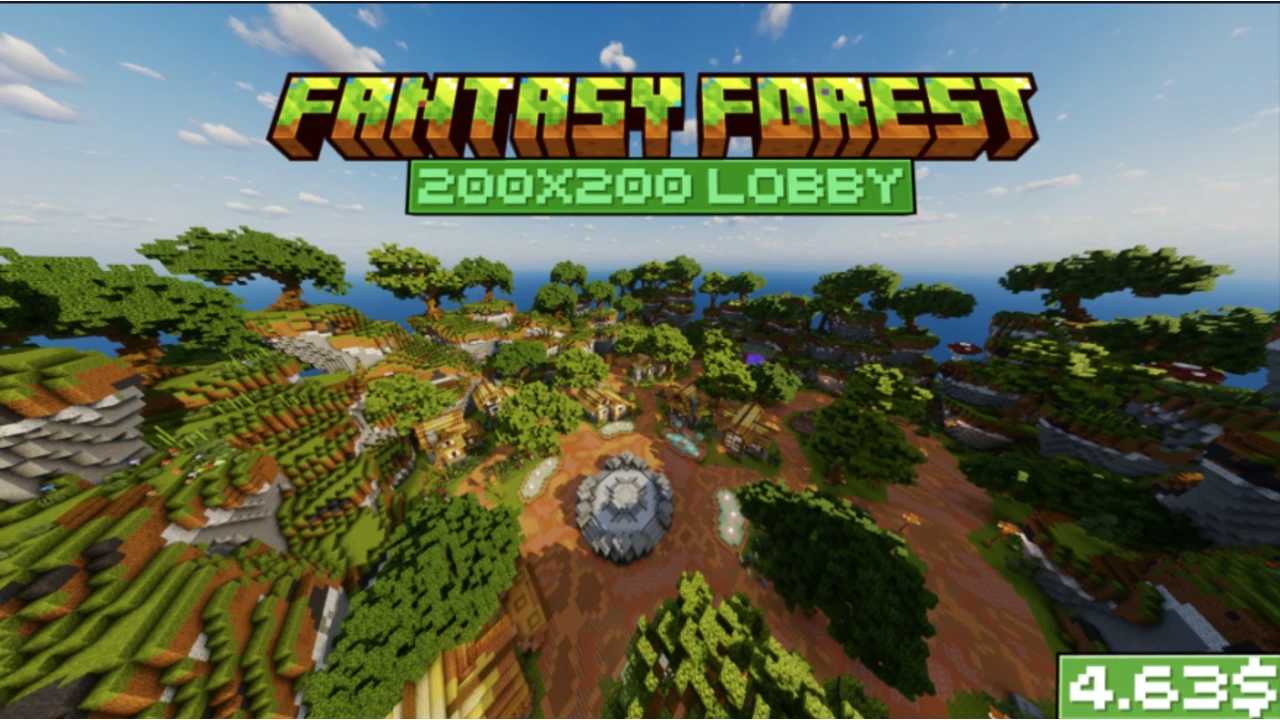
At a glance
| Details | |
|---|---|
| Resource type | Minecraft build — spawn and hub |
| Build size | 200 × 200 blocks |
| Build version | 1.0 |
| Listed Minecraft versions | 1.21.8, 1.21.11, 26.1, 26.2 and 26.3 |
| Download size | Approximately 6.84 MB |
| Dependencies | None listed in the product catalogue |
| Licence | See the current marketplace listing |
Explore the map
- Woodland village: rustic timber buildings arranged around connected paths and landscaped areas.
- Central plaza: a circular stone centerpiece with open space for NPCs, crates, information boards and player gatherings.
- Forest landscape: custom trees, dense vegetation, elevated hillsides and stone cliffs create the surrounding environment.
- Flexible layout: use the open areas for spawn services, navigation, community features or server-specific decoration.
Suitable server types
Fantasy Forest works as a starting hub for Survival and SMP servers, RPG and adventure worlds, Towny communities, themed networks and other servers that need a woodland-style spawn.
Before importing
- Check the supported Minecraft versions against your target server build.
- Back up the current world before importing or replacing anything.
- Read the included README and inspect the archive to confirm its world format and import instructions.
- Test the map on a staging server first, then add your own NPCs, portals, crates and server information.
- Review the marketplace licence and attribution requirements before using the build publicly.
Import and setup workflow
Prepare a test server
Use a server version listed above and make a backup before changing any existing worlds.
Extract and inspect the download
Read the included README and identify the world folder and any accompanying files.
Import the world
Follow the instructions for your world-management setup. Do not guess the folder name or overwrite your current spawn.
Set and protect the spawn
Configure the spawn location, protect the intended build area and check player permissions.
Add server features
Place NPCs, portals, crates, leaderboards and information displays where they fit the layout.
Test with a regular player account
Check the paths, spawn point, protection, interaction points and performance before opening the map to players.
Product listing
View Fantasy Forest 200x200 on BuiltByBit
For more world-import guidance, see Minecraft Build Guides and Installing a ZCraft Studios Resource. For help with your server setup, visit the ZCraft Studios Discord.